How to Add a WordPress Logout Link to Your Menu — post content
Do you want to add a WordPress logout link to your site?
If you're running a membership site, bbPress forum, e-commerce store, or a learning management system (LMS) using WordPress, having a prominent logout link is useful for your users. In this article, we'll show you how to add a WordPress logout link to your navigation menu as well as other areas of your site.
 If you or your site administrator disabled the WordPress admin bar, you cannot see the WordPress logout link. The good thing is that the WordPress logout link is directly accessible to log out of your current WordPress session.
Your WordPress site's logout link looks like this:
If you or your site administrator disabled the WordPress admin bar, you cannot see the WordPress logout link. The good thing is that the WordPress logout link is directly accessible to log out of your current WordPress session.
Your WordPress site's logout link looks like this:
 You can also manually add this logout link anywhere on your WordPress site. Let's take a look at how to do that.
 When you're done, click the 'Add to Menu' button and you'll see the link appear in the right column. You can adjust its position by dragging it up or down. Don't forget to click the 'Save Menu' button to save your changes.
Now you can visit your website to see the logout link in your navigation menu.
When you're done, click the 'Add to Menu' button and you'll see the link appear in the right column. You can adjust its position by dragging it up or down. Don't forget to click the 'Save Menu' button to save your changes.
Now you can visit your website to see the logout link in your navigation menu.
 The problem with adding the logout link to the menu is that it is visible to all users (both logged in and logged out). It makes sense to show the logout link only to users who are actually logged in.
 Some people don't think the other links in the Meta widget are very useful.
Alternatively, you can also add plain text or a custom HTML widget with the logout link in plain HTML.
The HTML code you need to add:
Some people don't think the other links in the Meta widget are very useful.
Alternatively, you can also add plain text or a custom HTML widget with the logout link in plain HTML.
The HTML code you need to add:
 After clicking 'Save Menu' and checking your WordPress website, you'll see the link in your menu.
 When you click on it, it takes you to a page to log in, or if you are already logged in, logs you out.
This method also works with WooCommerce , MemberPress and other WordPress e-commerce platforms.
When you click on it, it takes you to a page to log in, or if you are already logged in, logs you out.
This method also works with WooCommerce , MemberPress and other WordPress e-commerce platforms.
Logout Link for WordPress
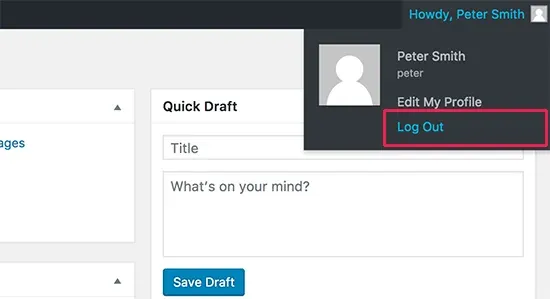
Normally, you can log out of your WordPress site by clicking the logout link. This link is located under your profile picture in the upper right corner of the WordPress admin bar . All you need to do is hover over your username and it will appear in the dropdown menu.
If you or your site administrator disabled the WordPress admin bar, you cannot see the WordPress logout link. The good thing is that the WordPress logout link is directly accessible to log out of your current WordPress session.
Your WordPress site's logout link looks like this:
http://example.com/wp-login.php?action=logout
Don't forget to replace example.com with your own domain name.
You can directly access this link from your browser window to log out of your WordPress site.
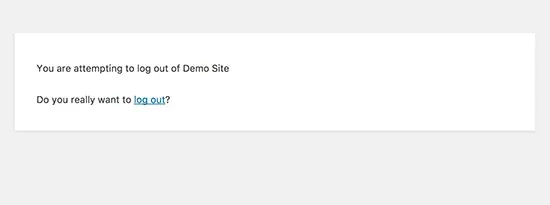
When you visit the WordPress logout link, it takes you to a warning page. You will need to click the logout link to confirm that you really want to log out.
You can also manually add this logout link anywhere on your WordPress site. Let's take a look at how to do that.
Adding a Logout Link to WordPress Navigation Menus
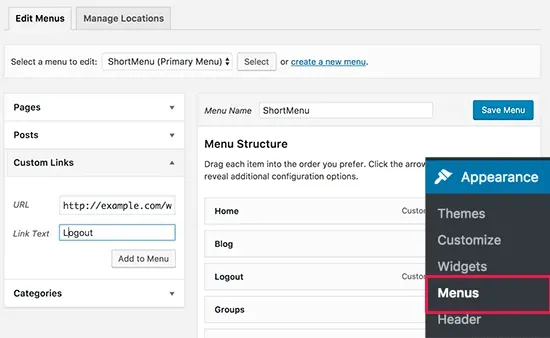
Adding the WordPress logout link to your site's navigation menu will allow it to be easily accessed from any page on your website. Simply go to Appearance » Menus from your WordPress admin page. After that, you need to click the custom links tab to expand it, and add the logout link to the URL field.
When you're done, click the 'Add to Menu' button and you'll see the link appear in the right column. You can adjust its position by dragging it up or down. Don't forget to click the 'Save Menu' button to save your changes.
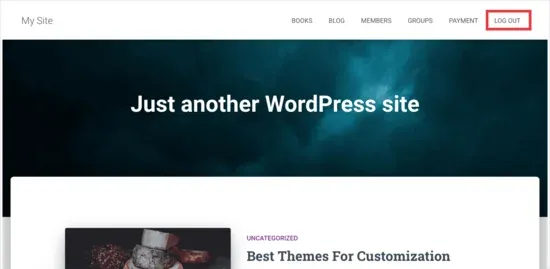
Now you can visit your website to see the logout link in your navigation menu.
The problem with adding the logout link to the menu is that it is visible to all users (both logged in and logged out). It makes sense to show the logout link only to users who are actually logged in.
Add a WordPress Logout Link to a Sidebar Widget
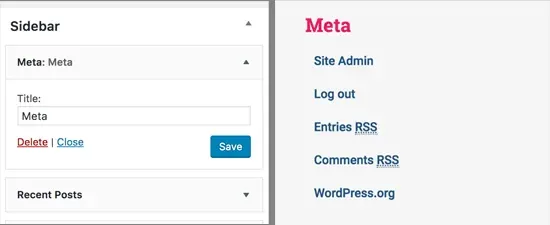
WordPress comes with a default widget called Meta . This widget shows users a number of useful links, including a logout or login link.
Some people don't think the other links in the Meta widget are very useful.
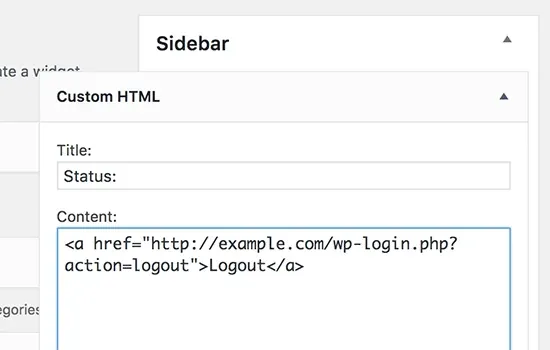
Alternatively, you can also add plain text or a custom HTML widget with the logout link in plain HTML.
The HTML code you need to add:
<a href="http://example.com/wp-login.php?action=logout">Logout</a>
Adding a Dynamic Login/Logout Link to WordPress
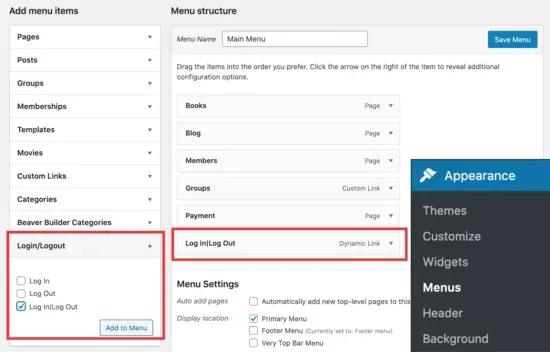
If you manually add a logout link to WordPress, the problem is that it doesn't change based on the user's login status. To fix this, you can use a plugin to dynamically display the login or logout link based on the user's session. First, you need to install the Login or Logout Menu Item plugin. After installing and activating the plugin, in your WordPress admin you'll go to Appearance » Menus and add the Login/Logout link to your menu.
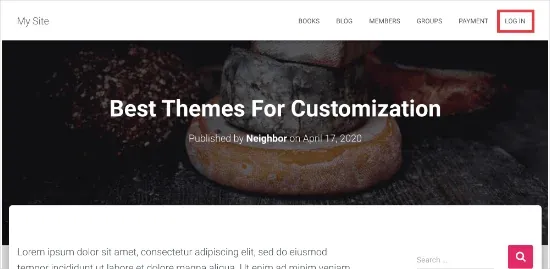
After clicking 'Save Menu' and checking your WordPress website, you'll see the link in your menu.
When you click on it, it takes you to a page to log in, or if you are already logged in, logs you out.
This method also works with WooCommerce , MemberPress and other WordPress e-commerce platforms.


![8 Best Security Plugins to Protect Your WordPress Sites [2026 Updated]](https://dogucanguler.com/storage/blog/wp/2025/03/WordPress-Sitelerinizi-Koruyacak-8-En-Iyi-Guvenlik-Eklentisi-2025-Guncel.webp)
![Best SEO Plugins and Tools for WordPress [2026 Updated]](https://dogucanguler.com/storage/blog/wp/2025/03/WordPress-icin-En-Iyi-SEO-Eklentileri-ve-Araclari-2025-Guncel.webp)


