
Add Dark Mode to Your WordPress Website (The Easy Way) — post content
Eye-Friendly Design: How to Add Dark Mode to Your WordPress Site Step by Step
For the last few years, there has been a quiet but powerful trend in the technology world: Dark Mode. This feature, which we encounter everywhere from our smartphones to our favorite apps, from our operating systems to the websites we visit most often, offers functionality far beyond just an aesthetic preference, fundamentally changing the user experience. So, would you like to bring this popular trend to your own WordPress site and offer your visitors a more comfortable and modern browsing experience?
Dark mode replaces a website or application's interface with a dark-colored theme (usually black or dark gray) instead of the traditional bright white background. This simple change reduces eye strain caused by the bright white light emitted from screens, especially in low-light environments or at night, increases readability, and even saves battery life on devices with OLED displays. Adding a dark mode option to your site gives control back to your visitors and shows that you respect their personal preferences. It's not hard to understand why giants like YouTube, Twitter, and Instagram have embraced this feature.
In this comprehensive guide, we will explain step by step how you can easily add dark mode to your WordPress site. We will not only show you how to add this to your site's front-end visible to visitors, but also how you can bring this feature to your WordPress admin panel (back-end) to protect your own eyes when entering content or managing your site at night. If you're ready, let's start this transformation that will make your site more modern, user-friendly, and comfortable.
What Is Dark Mode and Why Should You Add It to Your Website?
Dark mode is the process of inverting the color palette in a digital interface. Instead of dark-colored text on a light-colored background, light-colored text on a dark-colored background is used. This approach is different from "night mode." Night mode usually reduces blue light by drawing the screen's color temperature to more yellow tones, while dark mode directly changes the interface's color scheme.
Today, all major operating systems such as iOS, Android, Windows, and macOS allow users to put their devices into dark mode with a single touch. When users make this preference, supporting apps and websites also automatically switch to the dark theme. When you add dark mode support to your website, you provide a flawless experience by automatically adapting to these users' preferences.

So, what are the concrete benefits of adding this feature to your site?
- Improved User Experience (UX): Offering an option to your visitors shows that you care about their comfort. It reduces eye strain especially for users who read long articles or spend long periods on your site.
- Increased Engagement and Time on Site: A comfortable reading experience can encourage visitors to stay on your site longer and browse more pages. This is also a positive signal for SEO.
- Modern and Professional Image: Offering dark mode support shows that your site follows current design trends and is technologically modern. This strengthens your brand's image.
- Better Readability: When the right contrast ratios are used, light-colored text on a dark background can be easier to read for some users and increase focus.
- Battery Saving: Especially on mobile devices with OLED and AMOLED displays, since black pixels are turned off, dark mode use significantly reduces energy consumption.
Method 1: Adding Dark Mode to WordPress Using a Plugin (The Easiest Way)
The beauty of WordPress is the plugin ecosystem that allows you to add complex features to your site even without coding knowledge. The most popular and easiest way to add dark mode is to use a plugin specifically developed for this job. Our recommendation is the WP Dark Mode plugin, which both offers powerful features in its free version and is extremely simple to install.
Step 1: Install and Activate the WP Dark Mode Plugin
- Log in to your WordPress admin panel.
- From the left menu, go to Plugins > Add New.
- Type "WP Dark Mode" in the search box.
- When you find the plugin, click "Install Now" and then "Activate."
Step 2: Configure General Settings (For the Site Front-End)
After the plugin is activated, go to the Settings > WP Dark Mode menu in your WordPress admin panel. Here, the "General Settings" tab will greet you.
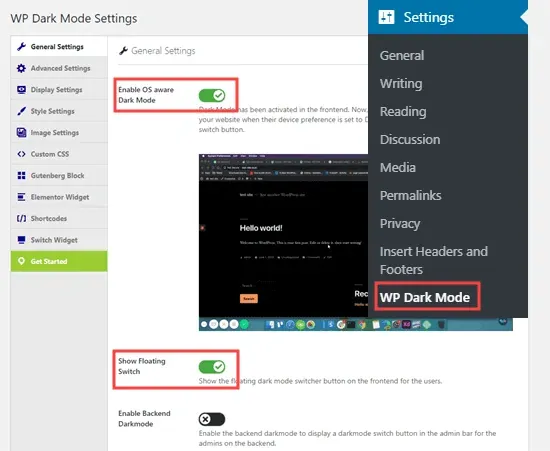
On this screen, you'll see that two important settings are already on by default:
- Enable OS-Aware Dark Mode: Thanks to this great feature, if a visitor's device (phone, computer, etc.) is already in dark mode, your site also automatically opens in dark mode. This provides flawless integration.
- Show Floating Switch: This option adds an on/off button that is always visible in the right or left bottom corner of your site. This way, even a user whose device is in light mode can manually switch your site to dark mode.
With these two settings on, you don't actually need to do anything else. When you visit your site, you can instantly test dark mode by clicking the button that appears in the corner.

Step 3: Customize the Design (Optional)
The free version of the WP Dark Mode plugin offers some customization options, albeit limited.
- Toggle Button Style: From the "Display Settings" tab, you can change the style of the on/off button that will appear on your site. The free version offers a few different style options.
- Color Palette: From the "Style Settings" tab, you can change dark mode's color scheme. The plugin offers a few different ready-made color palettes. This allows you to choose a dark theme more suited to your brand's colors.
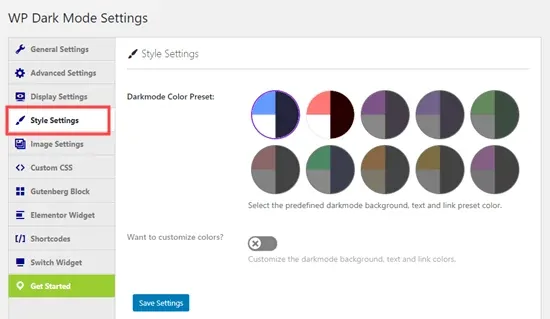
Don't forget to click the "Save Settings" button after every change you make. The paid (Pro) version of the plugin offers much more advanced features such as time-based dark mode, more style options, and custom CSS addition.
Method 2: Adding Dark Mode to the WordPress Admin Panel
You've thought of your site's visitors, but what about yourself? Especially if you are someone who works on the WordPress admin panel at night or for long hours, the bright white admin interface can quite tire your eyes. Fortunately, the WP Dark Mode plugin solves this problem too.
- Enable Dark Mode for the Admin Panel: Go again to the Settings > WP Dark Mode menu. In the "General Settings" tab, find the "Enable Backend Dark Mode" option and turn it on. Save the settings.
- Use Your New Button: When you save this setting, a new "Light / Dark" button will appear on the black bar (admin bar) at the top of your WordPress admin panel.
- Enjoy the Experience: By clicking this button, you can instantly put your admin panel into dark mode. This feature allows each user to make their own preference if you have multiple users on your site. That is, your use of dark mode does not affect other administrators.
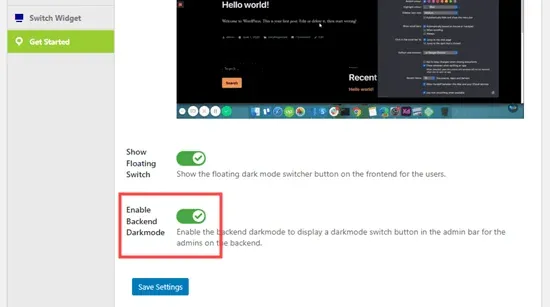
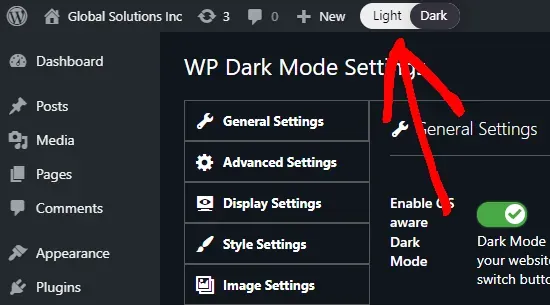
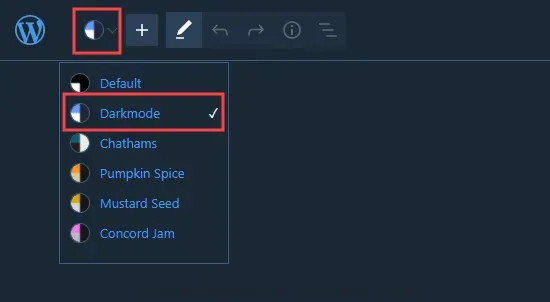
You can even activate dark mode in the block editor you use when creating content. While in the post editing screen, you can reach this option from the settings menu in the upper right corner and write articles for hours without straining your eyes or breaking your inspiration.
Method 3: Adding Manual Dark Mode with Custom CSS (Advanced)
If you don't want to use a plugin and trust your CSS knowledge, you can also create your own dark mode theme. This method gives you full control but requires technical knowledge.
The basic logic is to use CSS's prefers-color-scheme: dark media query. This query detects whether the user's operating system is set to dark mode, and if so, applies the CSS codes you specify.
A sample CSS code might look like this:
@media (prefers-color-scheme: dark) {
  body {
    background-color: #1a1a1a;
    color: #f0f0f0;
  }
  a {
    color: #58a6ff;
  }
  h1, h2, h3 {
    color: #ffffff;
  }
  /* Dark mode styles for all other elements... */
}
You can manually define your site's dark mode appearance by adding this code to the Appearance > Customize > Additional CSS section in your WordPress admin panel. You'll also need to use JavaScript to add an on/off button. This is a more laborious but most flexible method.
Conclusion: A Necessity of User-Centric Design
Adding dark mode to your WordPress site has become almost a standard for a modern website that takes user experience seriously, no longer just an "extra" or "luxury." Whether through the simplicity of a plugin or the flexibility of custom CSS codes, bringing this feature to your site will significantly increase the comfort you offer your visitors and your brand's modern image. With a few simple steps, you can protect both your visitors' and your own eye health, and equip your site with one of the most up-to-date trends in the digital world.


![8 Best Security Plugins to Protect Your WordPress Sites [2026 Updated]](https://dogucanguler.com/storage/blog/wp/2025/03/WordPress-Sitelerinizi-Koruyacak-8-En-Iyi-Guvenlik-Eklentisi-2025-Guncel.webp)
![Best SEO Plugins and Tools for WordPress [2026 Updated]](https://dogucanguler.com/storage/blog/wp/2025/03/WordPress-icin-En-Iyi-SEO-Eklentileri-ve-Araclari-2025-Guncel.webp)


