How to Automatically Translate Your WordPress Site (The Easy Way) — post content
Do you want to automatically translate your WordPress site into other languages?
There are a few different ways to translate your WordPress site: you can translate it manually yourself, hire translators, or use AI-powered translation tools that have become quite good over the years.
In this article, we'll show you how to automatically translate WordPress using machine learning (the easy method).
Why Should You Automatically Translate Your WordPress Site?
Automatically translating your WordPress site allows you to easily provide content to your users in their own languages.
However, manually translating your site takes a lot of time. You can build a multilingual WordPress website by helping with translations and hiring translators, but your costs will increase as you add more languages or hire more translators.
Translating your site automatically is fast and economical. You can translate only a few important pages or your entire site.
The translation quality may not be as good as manual translations. However, AI-powered tools have become much better and can provide a faster and more cost-effective alternative.
With that said, let's take a look at how to easily set up automatic translation on a WordPress site.
Installing the WPML Plugin
The easiest way to translate WordPress automatically is to use a translation plugin . We recommend WPML for this .
WPML is a premium plugin and you need their 'Multilingual CMS' plan or higher to run automatic translations.
First, you need to install and activate the WPML plugin . For more details, see our step-by-step guide on how to install a WordPress plugin .
After activating it, click the 'Register Now' link you'll see on your plugins page. Then you'll see a page where you need to enter your site key. You can find this under your account on the WPML website.

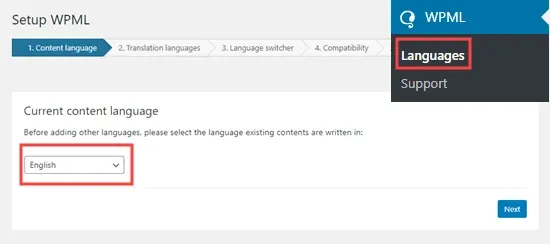
Now, in your WordPress admin go to the WPML » Languages page . This will show the WPML setup options.
First, simply select the language for your existing content and then click the Next button.
Now, you need to select the languages to be enabled for your site. Just check the box next to the ones you want to use.

The language options on your site will appear in a language switcher.
WPML will ask you to choose an order for the languages in the switcher. You also need to choose what to do if a translation for a particular page is missing.
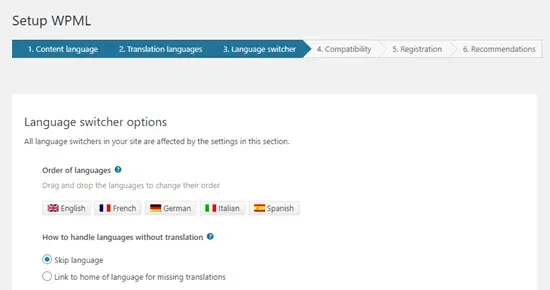
Below this, you can add the language switcher to your navigation menu. If you prefer, you can add this to a widget or to your website's footer area.
Finally, you have the option to link to translations above or below your posts. If you enable this option, you can choose how these translation links will look. You'll also see a preview:
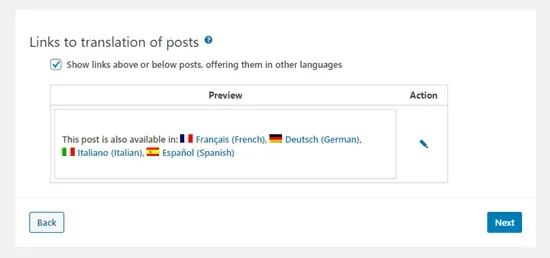
When you're ready, click the Next button to continue.
WPML will then ask if you want to send theme and plugin information to WPML.org. This can help speed things up if you need support.
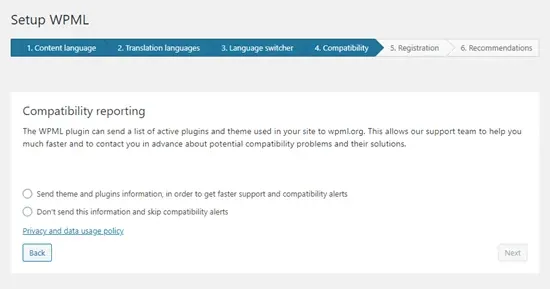
Next, if you haven't already, you need to enter your site key. If you've already entered it, click the Next button.
After this, you'll see some recommendations for installing other components. Go ahead and install and activate the String Translation and Translation Management plugins in this step:
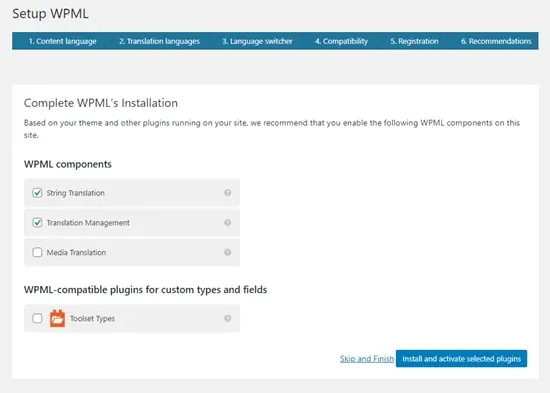
Finally, click the 'Skip and Finish' link to close the setup wizard.
Automatically Translating Your Content
To translate your content , you need to go to the WPML » Translation Management page in your WordPress admin .
Here you need to choose who will translate your site. We recommend selecting "Only myself" here:

Next, you'll see some details about the Advanced Translation Editor. Just click to continue. Then you'll see a Summary that you need to continue, and the 'Done!' button.
After this, you'll be redirected to your translation management dashboard.
Here, to set up automatic translations, you need to click the 'Translation Tools' tab and then the 'Sign up for free' button:

Tip: You get 2,000 words of machine translation per month for free.
You'll then be asked to enter your billing details.
After this, click the 'Translation Dashboard' tab. From here you can choose the content you want to translate. We'll translate our About and Contact pages.
Just check the boxes next to the pages you've selected:

After selecting the content, you'll see a word count estimate. This helps you budget for automatic translations.
Next, go to the 'Choose translation options' section. This will create translations of the content you've selected in all languages by default, but you can change the settings if you want.
After making your selection, click the 'Add selected content to translation basket' button.

Now you should see a new 'Translation Basket' tab at the top of the screen. Clicking on it will show you the pages ready for translation and the total word count that will be needed.
Go ahead and click the 'Send all items for translation' button:

You should then see a success message.
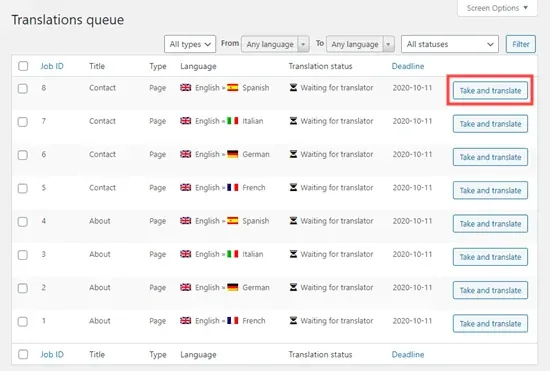
Next, go to the WPML » Translations page in your WordPress admin to see your translation queue .
To use the automatic translator, just click the 'Take and translate' button next to a version of the page.
Then you'll see the advanced translation editor. Here, just click the 'Yes, translate automatically' button:

WPML will now automatically translate your content into the selected language using machine learning.

Just click the 'Complete' button at the bottom of the screen, and then you can translate your other pages in the same way.
Displaying Your Translated Pages on Your Website
You can visit a page on your website and view its translated versions. On our demo website, our About page now looks like this:

If we click the link for the French version, we see the translated page.

Automatically Translating WordPress Content in Bulk
If you have a lot of content to translate, doing it in bulk is the fastest way. As before, you first need to add the content to your Translation Basket and then send it for translation.
After this, go to the Translation Tools tab. Here you'll see a list of translation jobs. Click the checkbox at the top of the list to select all:

Each page only fits 10 items. You also need to select any jobs on subsequent pages. To do this, just click the '2' button at the bottom right of the table.
After selecting all jobs, click the "Translate automatically" button:
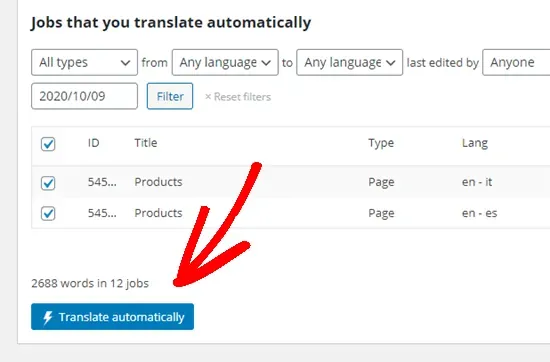
They will be automatically translated for you. You can view the completed versions by viewing your site as before.
If you want to edit an automatic translation , go to Pages » All Pages in your WordPress dashboard . Then, click the pencil icon for that language:

This will then launch the Advanced Translation Editor.

To learn more about WPML, see our article on creating a multilingual site .
Changing Your WordPress Admin Language
WPML also allows different users to choose different languages within the WordPress admin area.
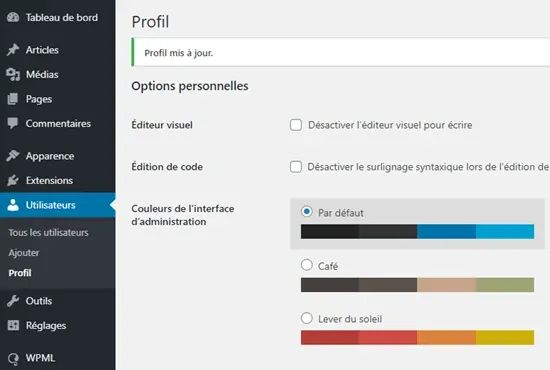
It's easy to do this by going to Users » Profile and selecting your preferred language from the Language dropdown menu :

Don't forget to click the 'Save Changes' button at the bottom of the page.
Now, your admin area will be translated into the language you selected: